
A Quick Note: Installing Procreate brushes can be a little clunky at the moment. I have high hopes that the Procreate developers will make it much easier soon.
I hope these tutorials will help make it a little easier to install any Procreate brushes you might download :).
This is by far the easiest method! (Mac Computer)
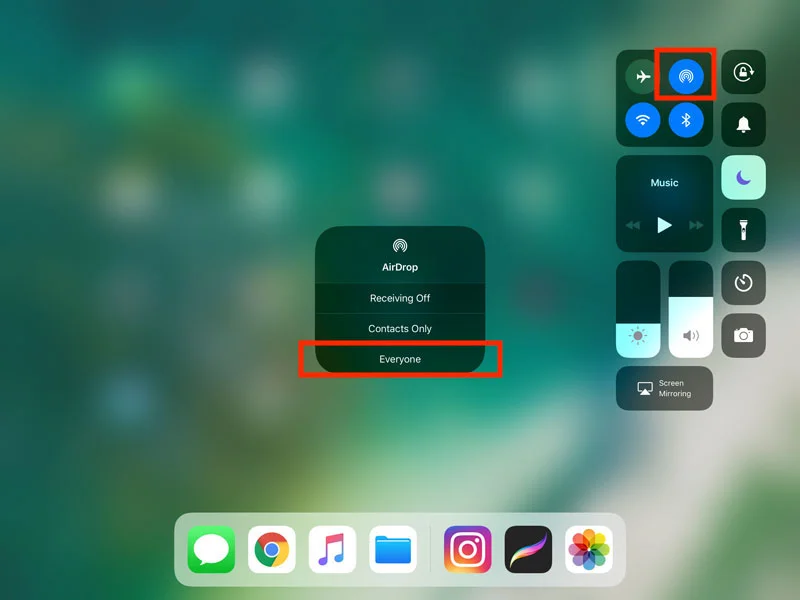
Open your command center by either swiping up or double clicking the home button. Select the airdrop icon and then select 'everyone'.
In the example below you can see the options that need to be selected.
Locate the brushes folder on your mac. Drag and drop them on your airdrop folder. You can also right click and select Share>AirDrop.

In the example above you cans see where I opened two finder windows (One for the brushes and one for air drop). I drag those brushes onto my ipad airdrop folder (My Portrait).
Procreate will automatically open and install the brushes instantly. You should now see a new brush folder labeled 'Imported'. You should see all of the brushes installed. Go ahead and rename your imported brush folder by double tapping the brush set name. That's it! Enjoy using your new brushes!
<
Once you've downloaded your files, you can use a cloud service like Google Drive, Dropbox, etc.
Log into your cloud provider and upload your downloaded files to your cloud. For this example, I'll be using Google Drive (Again, use the cloud service you like best).
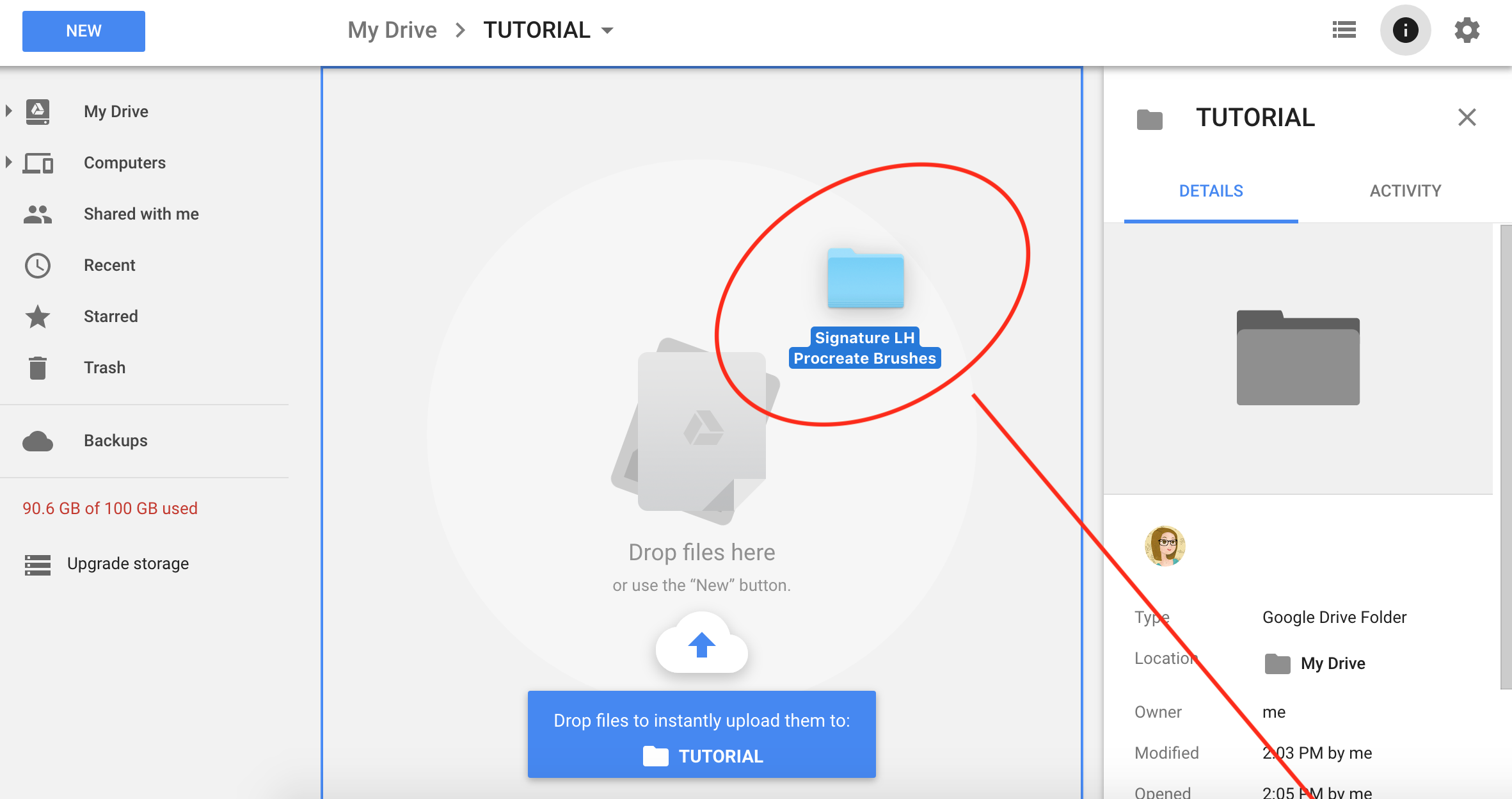
In the example above, I have logged into my Google Drive and I am dragging and dropping my files into Google Drive to upload.
If you don't already have the app on your iPad for your cloud service provider. Go ahead and download the app. For this example I am using Google Drive, so I have the Google Drive app downloaded on my iPad.
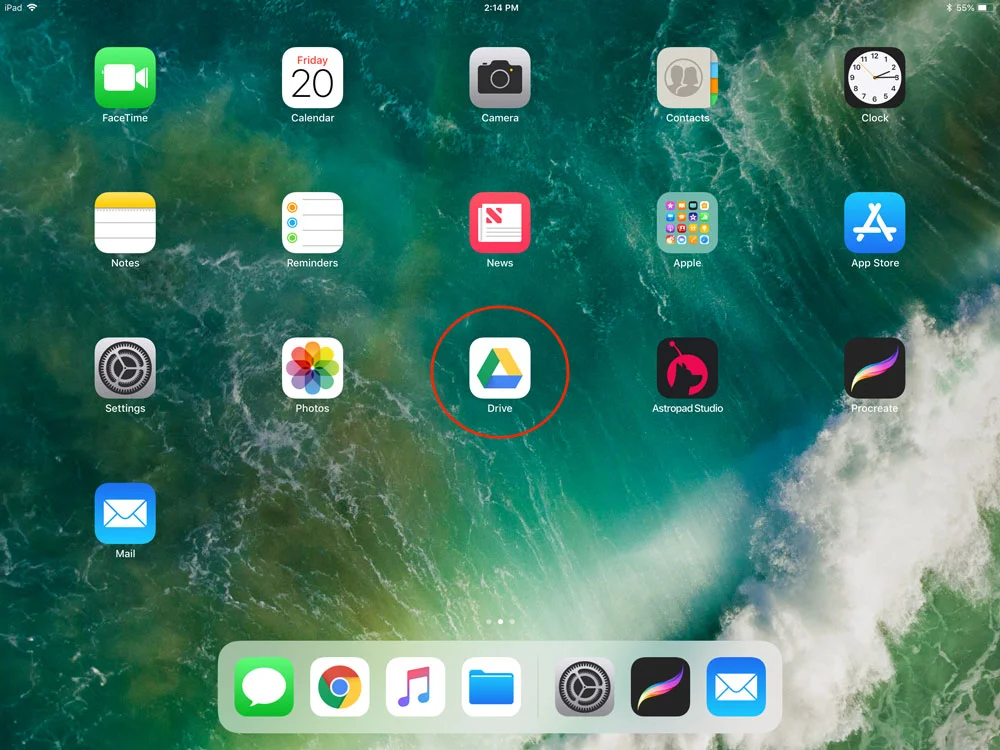
In the Example above, I have downloaded the Google Drive App.
On your iPad, open up your cloud services app and navigate to the brushes folder that you recently uploaded in step 1.

In the example above, you can see where I have navigated to the brushes folder.
Next, starting with the first brush, select the 3 dots next to the first brush, then select 'Open In', and lastly select 'Copy to Procreate' (SEE IMAGE BELOW). Procreate should then open and you will see your newly imported brush in Procreate. You'll need to repeat this step for all of your brushes.

After you have imported all your brushes using step three, open Procreate. You'll see that Procreate has defaulted to calling your new brush set 'Imported'. Go ahead and rename the new brush set accordingly.